USB Connector Cast Phone to TV
Vidmark Inc.Libraries & Demo
3.6433.00 Reviews
- Version
- 2.0.5
- Installs
- 1.00M
- Age Rating
- Everyone
Screenshots
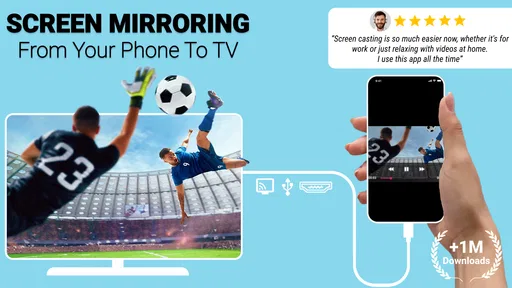
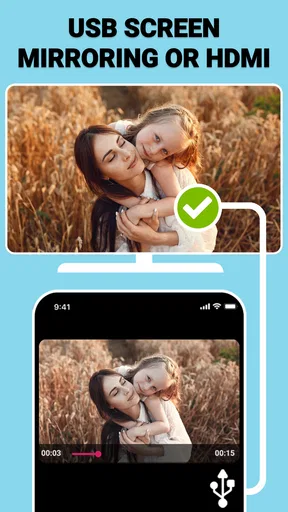
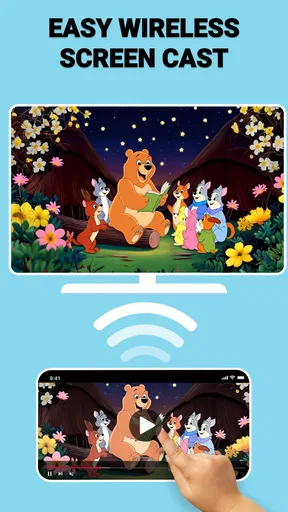
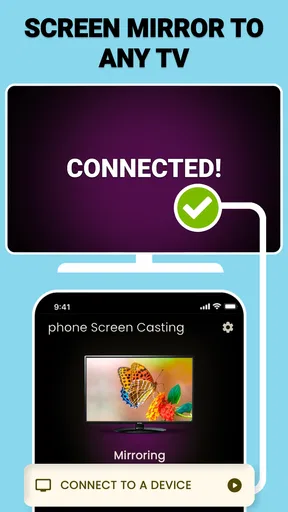
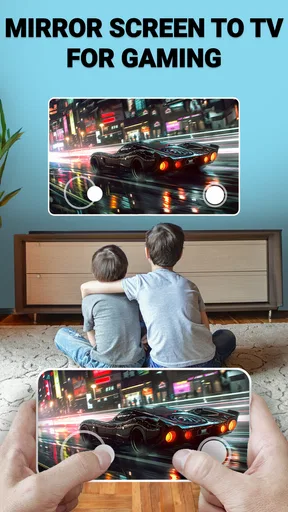
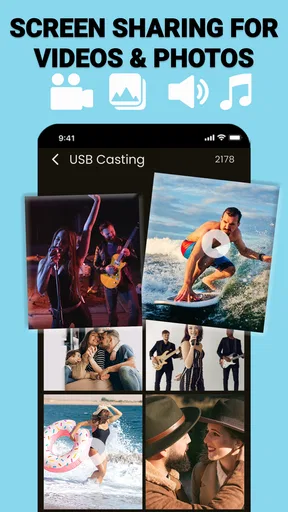
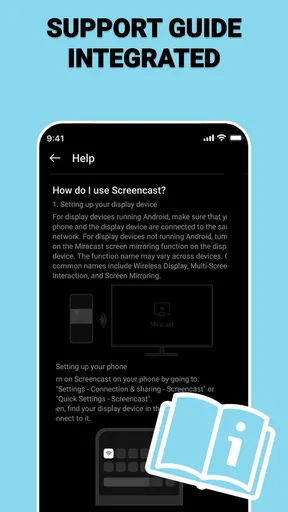
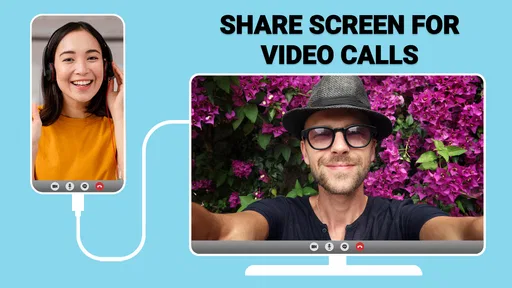
Our Review of USB Connector Cast Phone to TV
 Analysis by Appyee
I judge a phone-to-TV app by a few practical questions: can I connect the devices I already own, is the setup understandable, and does the method suit what I want to show? USB Connector Cast Phone to TV is aimed at people who want to put phone content on a larger screen through a wired connection, while its broader description also points to Wi-Fi mirroring. That makes it worth considering if you are weighing a cable-based approach against wireless casting, but the right choice depends on your phone, TV, and the kind of viewing you have in mind.
This is a free app in the Libraries & Demo category, developed by Vidmark Inc. It has an average rating of 3.5 from around ten thousand ratings, with more than a million installs. It is rated for Everyone, and the current version is 2.0.4. The app is free to download, though in-app purchases range from $9.99 to $99.99 per item, so I would check the purchase screens carefully before committing to anything paid.
Choose the connection before choosing the app
The most useful first step is to check your actual hardware, not assume that a USB port on a TV means it can show a phone’s screen. A TV’s USB port may be intended for other uses, and a cable that fits physically does not guarantee that the phone can send video through it. Before relying on this app for a gathering or presentation, check what connection your phone and television support and follow the app’s on-screen instructions. This simple check can prevent the frustrating situation of arriving with the right-looking cable but no compatible display path.
Wireless mirroring and wired connections solve slightly different problems. Wi-Fi can be convenient when you want to move around or avoid a cable across the room, while a wired setup can be attractive when you would rather not depend on a shared wireless network. Neither option is automatically better: compatibility and the kind of content you want to show matter more than the label. I would treat the app as a way to explore those connection options, rather than assume it can make every phone work with every TV.
Where a straightforward wired setup can help
For an ordinary evening, the appeal is easy to understand. Imagine a relative asking to see a set of trip photos: instead of passing a phone around the sofa, you can try connecting it to the television and let everyone look together. The same approach can help when you want to show a short clip, a document, or something on your phone to a small group. For those moments, the larger display is the point; you do not need a complicated home media setup just to share what is already on your device.
A cable also changes how you should prepare. I would test the connection before guests arrive, keep the phone charged, and make sure the cable reaches a comfortable place to use the device. If you plan to navigate menus or choose several photos, remember that the phone remains the source and may need to stay close to the TV. That is a small trade-off, but it is more useful to know beforehand than to discover it halfway through a presentation.
Getting Started with USB Connector Cast Phone to TV
First things first, setting up the app is a breeze. I downloaded it from the Play Store, and it was ready to go within minutes. You don’t need to be a tech genius to get it running, which is a relief. The app guides you through a simple step-by-step process to connect your phone to your TV using a USB cable. Make sure you’ve got a compatible cable handy, though!
Interface and Usability
The interface is clean and user-friendly. Once you open the app, you’re greeted with a straightforward menu that even my grandma could navigate. The options are clearly laid out, and you’re only a few taps away from mirroring your screen. A quick tip: always check that your TV supports USB connections for seamless streaming.
Even a clear menu cannot remove the compatibility step, so I would separate “the app is easy to navigate” from “the connection will work with my equipment.” Those are different questions. If the first attempt fails, confirm the selected input on the television, reconnect the cable, and look for any prompts on the phone instead of repeatedly tapping options. That orderly check is less stressful than changing several settings at once, and it makes it easier to identify whether the issue is the cable, the TV input, or the connection method.
Performance and Features
Now, onto the juicy part—the performance. I tested the USB Connector Cast Phone to TV app with a variety of content, from streaming videos to viewing photos, and it handled everything like a champ. The latency is minimal, meaning there’s hardly any lag between your phone and TV. Watching videos felt almost native, with no annoying buffering or stutters.
- Video Streaming: Whether you’re a Netflix aficionado or a YouTube enthusiast, this app streams your favorite content effortlessly.
- Photo Viewing: Sharing high-resolution images with friends or family is a delightful experience, with crisp visuals on the big screen.
- Gaming: Casual gaming is a blast, but just be wary of slight input delays for more fast-paced games.
I would be more cautious with any activity where timing or a specific app’s playback rules matter. A phone screen mirrored to a TV is not the same thing as a dedicated TV app: you still control playback on the phone, and notifications or accidental taps can interrupt what everyone sees. Before showing private photos or opening a video in front of other people, close unrelated apps and consider turning on a focus or do-not-disturb setting. That is a practical preparation tip, not a feature of the casting app, and it can make a shared-screen session feel much less awkward.
Compatibility and Connectivity
One of the standout features is its wide compatibility. The app supports a variety of devices and TV models, so chances are, you’re covered. However, keep in mind the importance of having a good quality USB cable to ensure a stable connection. I used a standard cable initially and experienced some disruptions. Switching to a high-speed cable made a world of difference.
If your goal is simply to watch one streaming service, a built-in app on a smart TV may be the easier route: it avoids keeping your phone attached and gives you the TV’s own playback controls. For photos, demonstrations, or content already arranged on your phone, mirroring can be more convenient because you can move between items without changing devices. A separate casting device may make sense for someone who casts often and wants a dedicated receiver, while this app is more appealing to a person who wants to try using a phone they already have. Those are differences in workflow, not a promise that one method will work with every setup.
Another helpful habit is to test with a harmless item first, such as a photo, before relying on the connection for a long video or an important meeting. If the picture appears but the sound does not behave as expected, check the television’s audio selection and the phone’s volume before assuming the app is at fault. Keeping the test short also lets you see whether the cable placement is practical and whether the screen orientation is suitable for what you plan to show.
Security and Privacy
In today’s digital age, security is paramount. The developers have done a solid job ensuring that your data stays secure during the casting process. The app doesn’t require unnecessary permissions, which is always a reassuring sign. You can enjoy your content without worrying about privacy invasions.
For a shared-screen session, I would still think about what is visible on the phone, because mirroring can expose more than the photo or video you intended to show. A message banner, a call, or a switch to another app may appear in front of everyone. The low-effort safeguard is to prepare the phone before connecting: dismiss sensitive notifications, open the intended material, and avoid leaving personal screens in the background. That advice matters most in a classroom, at work, or when handing the phone to someone else to browse.
Final Thoughts
Overall, the USB Connector Cast Phone to TV app is a fantastic solution for anyone looking to enhance their viewing experience. Whether you’re hosting a movie night or simply want to enjoy content on a larger screen, this app delivers on its promises. It’s easy to use, performs well, and maintains your privacy—all while keeping things simple and efficient.
If you’ve been on the hunt for a reliable way to cast your phone to your TV without the hassle of dealing with Wi-Fi or additional hardware, give this app a try. It might just become your new favorite tool for entertainment. Happy casting!
Who is likely to get the most from it?
I would put this on the shortlist for someone who occasionally shares phone content on a television and is comfortable checking cables and inputs before settling in. It can suit family photo sessions, informal demonstrations, and casual viewing when the phone is already where the content lives. It is less compelling if you expect a universal plug-and-play adapter, want a permanent living-room setup, or need dependable controls for fast-paced gaming. In those cases, a TV’s own apps or a dedicated casting solution may be a better fit.
The app is also a less obvious choice for anyone who does not want to keep a phone involved while watching. With phone-led mirroring, the device is still part of the experience: it may need to remain connected, accessible, and ready to control playback. If you want to start a show and then put your phone away, opening the service directly on the television is usually a cleaner routine. If you mainly want to show a few things already on your phone, keeping that phone as the controller can be a benefit rather than a drawback.
Think about purchases and version expectations
Because the download is free but optional in-app purchases can be substantial, I would not treat “free” as a reason to tap through every offer. Start by testing the basic connection you actually need and read the terms shown in the app before buying anything. If your use is occasional, it is sensible to decide whether the app solves a recurring problem before spending. The price range alone does not tell you which purchase is useful for your situation, so make that decision from the options presented on your device rather than guessing.
The app first appeared on May 23, 2018, and its current version is 2.0.4. It requires Android 8.0 or later, so check your phone’s software before installing. Those details help set expectations: an older phone below that requirement is not a good candidate, and keeping the app updated is a sensible step if you choose to rely on it. I would still test your particular phone-and-TV combination, because meeting the operating-system requirement does not by itself guarantee that a cable or display supports the connection you want.
My practical recommendation
My recommendation is to try it when you have a specific, modest goal: show photos to a group, mirror something briefly, or see whether your existing devices can make a wired setup work. Do a short test at home, check the sound and picture, and make sure the cable arrangement is comfortable. If that trial is smooth, the app may be a handy occasional tool. If it becomes a routine part of watching television, or if compatibility checks turn into a repeated chore, switch to the television’s native apps or another approach that better matches how you watch.
Privacy and Permissions
See what permissions an app requests and how it handles your data.
- Photos/Media/Files
- read the contents of your USB storage
- Storage
- read the contents of your USB storage
- Wi-Fi connection information
- view Wi-Fi connections
- Other
- view network connections, full network access, control vibration, prevent device from sleeping, Google Play license check
Verdict
Strengths of USB Connector Cast Phone to TV
- Easy setup with straightforward instructions.
- Compatible with most TV brands.
- High-quality video and audio streaming.
- Supports multiple file formats.
- Minimal lag during casting.
Limitations of USB Connector Cast Phone to TV
- Requires stable internet connection.
- Limited features in free version.
- Occasional app crashes reported.
- Ads can be intrusive at times.
- Not all devices are supported.
Other Releases by Vidmark Inc.
View All
Hacker: Secret Codes & Ciphers
Libraries & Demo4.0

Update Software App: Updates
Libraries & Demo3.9

Twitter Video Download
Video Players & Editors4.6

Mirror Link Car Display
Libraries & Demo3.9
Similar Picks in This Category
View All
PGT: GFX, Launcher & Optimizer
Trilokia Inc.4.5

AusweisApp Bund
Governikus Service GmbH3.7

Cardboard
Google LLC3.2

Gamers GLTool with Game Tuner
Trilokia Inc.4.5

Multi Web Chat - Read Secretly
World Scan & Cleaner3.8

App Cloner Premium & Add-ons
App Listo1.9
Frequently Asked Questions
How do I connect my phone to the TV using USB Connector Cast?
To connect your phone to the TV with USB Connector Cast, first ensure your TV has a USB port. Then, download and install the app on your phone. Use a compatible USB cable to connect your phone to the TV. Follow the on-screen instructions in the app to cast your phone’s screen to the TV.
Is USB Connector Cast compatible with all TVs and phones?
USB Connector Cast works with most smart TVs and Android devices that support USB OTG (On-The-Go) functionality. However, compatibility can vary based on your device's model and operating system. It's recommended to check the app’s compatibility list or consult customer support for specific details about your devices.
Do I need an internet connection to use USB Connector Cast?
No, an internet connection is not required to use USB Connector Cast. The app uses a direct USB connection to mirror your phone's screen to the TV. However, an internet connection might be necessary for streaming apps on your phone that require online access.
Are there any additional costs associated with USB Connector Cast?
USB Connector Cast is free to download, but it may offer in-app purchases or premium features that require payment. These features could enhance functionality, such as removing ads or unlocking additional casting capabilities. Review the app's pricing details in the app store for more information.
What should I do if USB Connector Cast fails to connect my phone to the TV?
If you're experiencing connectivity issues, ensure your USB cable is functioning correctly and both your phone and TV support USB OTG. Restart both devices and try reconnecting. Also, check for updates to the app that might resolve compatibility issues. If problems persist, consult the app’s support for further assistance.
